Updated November 2026 · Ubuntu Server, Debian, OPNsense and Proxmox VE · for offices of about 5 to 20 people
Most small offices need the same few things from a server: somewhere to keep shared files, a firewall at the front door, and perhaps a way to run several services on one machine. All of them have mature, free, open-source answers, with no per-user licence fees. This guide helps you choose, size and start safely, and it includes one complete worked example, a file share you can build in about twenty minutes.
What this is not: it is not a full install manual for every product. Each one has thorough documentation of its own. This guide shows you what to pick, what hardware to expect, and what to get right early. We can build and look after any of these setups for you.
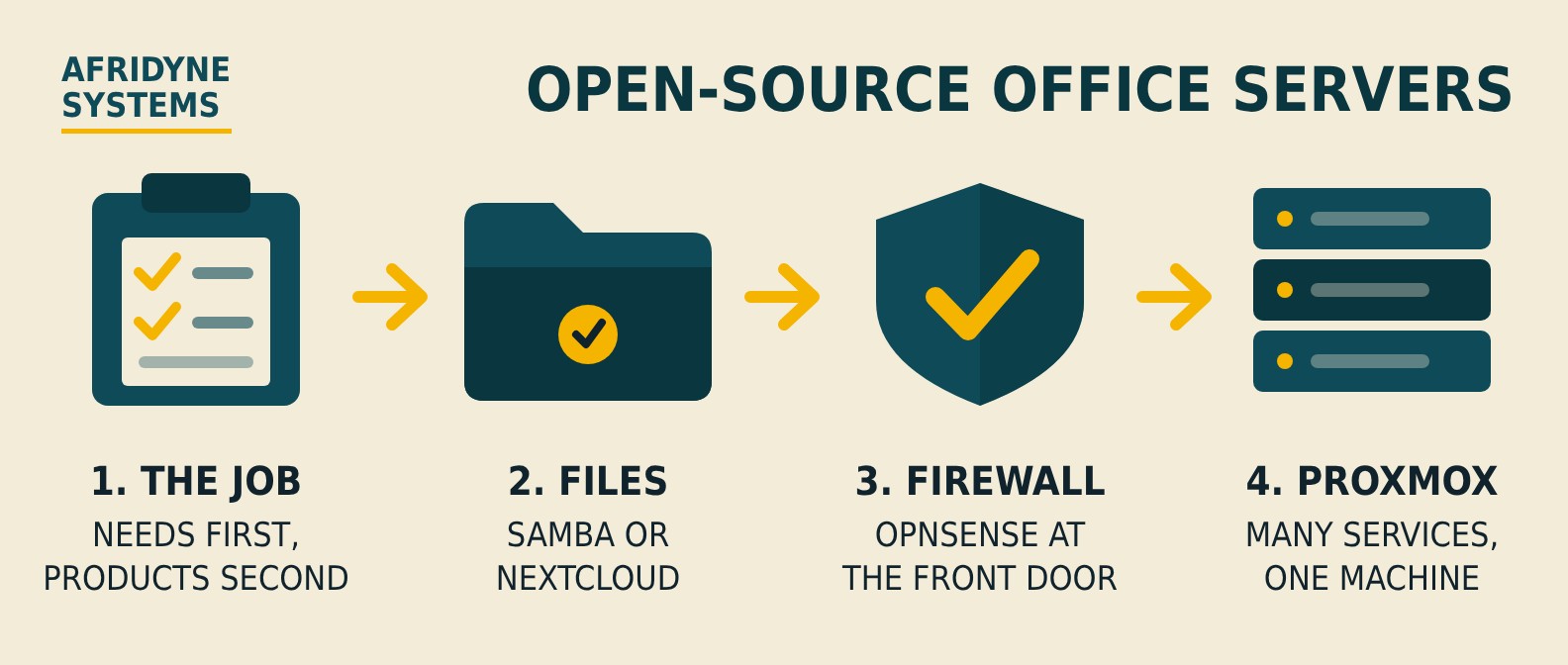
1. Start with the job, not the product
| You need | Open-source answer | It replaces |
|---|---|---|
| Shared folders with user permissions, on the office network | Samba | A Windows file server |
| Files from anywhere, phone and laptop sync, share links | Nextcloud | Dropbox, OneDrive, Google Drive |
| A firewall, VPN and traffic filtering at the office edge | OPNsense (or pfSense CE) | A commercial firewall |
| Several services on one physical machine | Proxmox VE | A VMware or Hyper-V host |
| Small tools such as monitoring or a password manager | Docker, see our Docker guide | Separate small servers |
| Backups of all of the above | See our backup guide | Hope |
Resist the urge to build everything at once. A file server and a reliable backup is a complete first project, and every later piece is easier once those are solid.
2. The server operating system
| Distribution | Updates and support | Pick it when |
|---|---|---|
| Ubuntu Server LTS | Five years of standard security updates for each Long-Term Support release. | Nobody on site knows Linux well. Help and guides for it are everywhere. This is our default. |
| Debian Stable | Roughly five years in total, with the Long Term Support project covering the last two. | You want the quietest, most predictable system, for a role that should never change. |
| Rocky Linux or AlmaLinux | Up to about ten years per major release. | A program you rely on specifically needs Red Hat compatibility. Otherwise there is no reason to choose it. |
Always install an LTS or Stable release on a server, never an interim release that is only supported for a few months. Then keep to the hardening steps in our Server Hardening guide before the server sees any real data.
3. A file server with Samba
Samba makes a Linux machine look like an ordinary Windows file server. Windows, Linux and Mac computers all open it the same way, as \\server\office. This example creates one shared folder that only members of a group called staff can use. It is written for Ubuntu Server or Debian.
Step 1. Install Samba and create the folder and group:
sudo apt update && sudo apt install samba
sudo groupadd staff
sudo mkdir -p /srv/office
sudo chgrp staff /srv/office
sudo chmod 2770 /srv/office
Step 2. For each person, give them an account on the server (skip the first line if they already have one), add them to the group, and set their file-share password:
sudo adduser anna
sudo usermod -aG staff anna
sudo smbpasswd -a anna
Step 3. Add the share to the end of /etc/samba/smb.conf:
[office]
   path = /srv/office
   valid users = @staff
   read only = no
   create mask = 0660
   directory mask = 2770
Step 4. Check the file for mistakes, restart Samba, and let the office network (and only that) reach it. Change the 192.168.1.0/24 to your own network:
sudo testparm
sudo systemctl restart smbd
sudo ufw allow from 192.168.1.0/24 to any app Samba
Step 5. From a Windows PC, open File Explorer and type \\server-name\office or the server’s IP address into the address bar. Sign in with the account name and the file-share password from step 2.
Never put Samba on the internet. It is for the office network only. For staff working from home or a phone, use a VPN (see our WireGuard guide) or Nextcloud, below.
Disks mirrored is not the same as backed up. Two disks in a mirror protect you when one fails, not when someone deletes a folder or the office floods. You still need the backups from section 8.
4. Nextcloud: your own Dropbox
Nextcloud gives you file sync for laptops and phones, share links you can email to clients, and optional calendars and contacts, all on a machine you own. Choose it when people need their files away from the office. Choose Samba when everyone is in the office and a shared drive is enough. Many offices run both.
- Install it the easy way. The project’s own All-in-One image runs in Docker and handles most of the fiddly parts. See our Docker guide first.
- Give it its own disk for the data, so growth cannot fill the system.
- It needs a domain name and HTTPS as soon as anyone outside the office uses it.
- Back up both the files and the database. Restoring only one of them gives you a broken system.
Keep it updated. Nextcloud is a website, and a neglected website on the internet is a risk. If nobody will update it, do not expose it. Use Samba and a VPN instead.
5. A firewall with OPNsense
OPNsense is a free firewall system you install on a small computer that sits between your internet connection and your office network. It gives you proper firewall rules, a WireGuard or OpenVPN server for remote staff, DNS-based blocking of adverts and malicious sites, and VLANs to keep guests and cameras away from the office computers (see our VLAN guide). pfSense CE is a close alternative. Pick one and learn it well.
- Hardware: a small x86 computer with at least two network ports (Intel network chips are the safest choice), 4 GB of RAM and a 32 GB or larger SSD.
- Plan the changeover for a quiet time, because the internet drops while you swap it in. Write down your current router’s settings first, and keep it so you can plug it back in.
- Export the configuration after every change that matters. The file is small, and restoring it turns a dead firewall into a fifteen-minute job.
- Do not open the management page to the internet. Reach it from inside the office, or over the VPN.
6. Proxmox: many services, one machine
Proxmox VE turns one computer into several. You manage everything from a web page, and each service gets its own virtual machine or lightweight container: one for the file server, one for Nextcloud, even one for a Windows-only accounting package. If one of them breaks, the others carry on, and you can take a snapshot before every risky change.
- Cost: Proxmox is free to use. The paid subscription buys support and a more heavily tested update stream. Without one you will see a reminder when you sign in. That is normal, not an error.
- Backups: Proxmox Backup Server is a free companion program for backing up virtual machines efficiently. Run it on a different machine from the one it protects.
- The trade-off: one machine for everything means one machine to lose. Know exactly how you would restore it before you rely on it.
7. Rough sizing for a small office
| Role | Starting point | Notes |
|---|---|---|
| File server (Samba) | 2 cores, 4 GB RAM | An SSD for the system, and two data disks in a mirror. The disks matter more than the processor. |
| Nextcloud | 2 to 4 cores, 4 to 8 GB RAM | Allow more RAM for many users, and a separate data disk. |
| Firewall (OPNsense) | 2 or more network ports, 4 GB RAM | A 32 GB or larger SSD is plenty. |
| Proxmox host | 4 or more cores, 16 to 32 GB RAM | SSD storage, and a second disk or machine for backups. Add RAM for each virtual machine you plan. |
These are starting points, not promises. Whatever you buy, add a small UPS. Power cuts and surges do more damage to servers than almost anything else, and a UPS costs far less than the lost day or a damaged disk. Set the machine’s BIOS option “restore on AC power loss” to power on, so it starts again by itself after an outage.
8. Keep it dependable
- Secure it first. Work through our Server Hardening guide before any real data goes on the machine.
- Back it up, and test the restore. A backup you have never restored is a hope, not a backup. Our backup guide has a 3-2-1 plan.
- Update on a schedule. Security updates can be automatic. Larger version upgrades should be planned, with a backup first.
- Watch it. Uptime Kuma, in our Docker guide, will tell you when something stops answering, before your staff do.
- Write it down. Keep a one-page note of what runs where, how to restore it, and where the passwords are kept (in a password manager, not on a sticky note).
- Decide who looks after it. The best server in the world needs one named person responsible, and a second who knows where the notes are.
When things go wrong
| What you see | Likely cause | What to do |
|---|---|---|
| Windows cannot find the share | Wrong name, the firewall, or the machine is off the network. | Try the IP address instead of the name. Check sudo systemctl status smbd and the ufw rule. |
| “Access denied” on the share | The user is not in the group, or the folder permissions are wrong. | Run id anna to check she is in staff, and ls -ld /srv/office to check the folder. |
| Internet stops after fitting OPNsense | The network ports are the wrong way round, or two devices are both doing the routing. | Check which port is WAN and which is LAN. Put the old router into bridge mode, or accept double routing for now. |
| A subscription pop-up appears in Proxmox | You are using it without a paid subscription. | That is expected. It is a reminder, not a fault. |
| The server does not come back after a power cut | The BIOS is set to stay off. | Set “restore on AC power loss” to power on, and fit a UPS. |
| Nextcloud warns about an untrusted domain | You are reaching it by a name or address it was not set up for. | Add that name to the trusted domains in its configuration. |
 Chat on WhatsApp